
Visual Analytics Dashboard
Visual analytics solutions combine data science and visualization methods to provide insights for decision-makers and communication professionals. Powered by state-of-the-art text mining and artificial intelligence algorithms, the webLyzard dashboard is an industry-leading example of this quickly emerging field. It focuses on Web intelligence and enables you to incorporate the latest online trends into your decision-making workflows.
Getting Started with Visual Analytics
Two video tutorials outline the capabilities and use cases of the webLyzard dashboard:
- The “Lite” version is a simple yet powerful content exploration tool. It helps you to analyze the public debate across news and social media channels in real-time or to track the latest articles published on the websites of companies, non-profit organizations and government institutions.
- The “Professional” version offers full customization and advanced analytics. For example, it forecasts future topics and identifies opinion leaders who might be able to amplify your message. Impact metrics reflect the impact of these opinion leaders, while emotion detection algorithms shed light on how stakeholders perceive your organisation’s activities in a given context.
| Get in Touch – Would you like to learn more about the dashboard and its wide range of applications and use cases? Then please continue reading below for a high-level overview, subscribe to our quarterly newsletter or contact us for a live demo and test account. |
Content is King, Context is Queen
 Analytic tasks tend to be multidimensional in nature. Accordingly, the dashboard tracks and visualizes emerging stories across multiple context dimensions such as source, region and language. The screenshot below summarizes the multiple views of the professional dashboard to access and navigate the content repository along these dimensions. Whenever you interact with one particular view, your actions will trigger an immediate update of all other views.
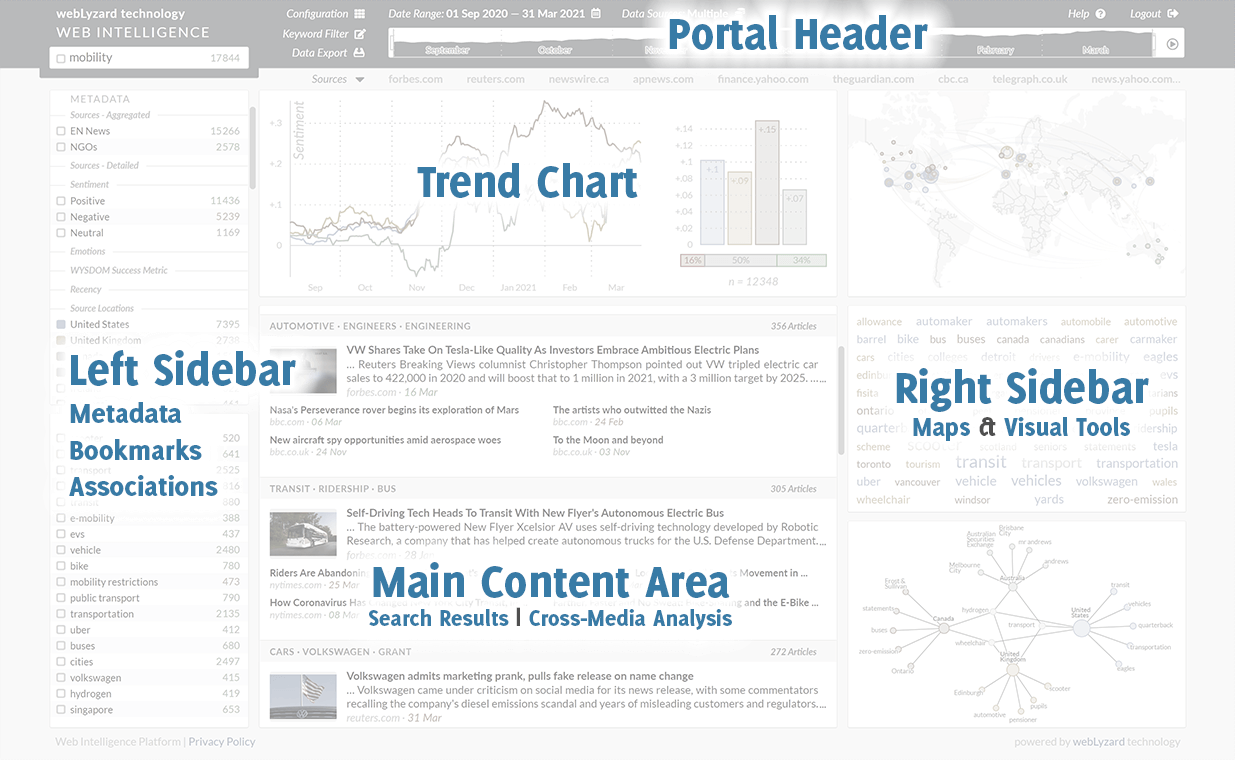
Portal Header
The text input box in the upper left corner is the currently active content filter. If this field contains an asterisk, the filter is turned off and all available documents remain part of the search space. Entering a filter term restricts all follow-up analyses to articles and postings that contain this term. If the rectangular marker on the left is selected, results matching the context filter are shown in the trend chart as a dotted line. On hover, the gear icon provides access to advanced filter options.
The main menus of the visual dashboard include configuration, keyword filter and data export in various formats, e.g. PDF reports in A4 or 16:9. Two drop-downs allow selecting the date range and data sources (news media, social media, etc.) to be used for the analysis. The area chart previews the results matching the context filter over a longer time span. The time interval is a global setting that not only affects the trend chart, but also the content area and all visualizations. You can specify the interval by choosing a “from” and “to” date, or by selecting the past [n] days, weeks or months. Below, the info bar either shows context-aware help texts or a list of the most frequent sources or referenced entities (persons, organizations or locations).
Left Sidebar – Default Categories
The left sidebar serves multiple purposes. You can trigger and combine search queries by activating one or several checkboxes. Colors are allocated automatically depending on the sequence in which checkboxes are selected. The values indicate the number of matching documents given the selected content source(s) and time interval, their color-coding reflects average sentiment. Clicking on a label opens a tooltip to preview results or modify the active content filter via Replace, Restrict, Extend or Exclude operators. The same tooltip is available across various dashboard features, e.g. the visual analytics tools listed below. It includes a line chart and lists associated keywords. A small chart icon left of a category heading (Associations, Metadata, Bookmarks, etc.), which appears on hover, allows you to either select the first five items (if none are currently active) or to deselect all active items.
Associations
The terms in the Associations widget are updated whenever the content filter changes. The sequence of these phrases reflects the strength of association. The values indicate the number of times each association has co-occurred with the filter term. They represent the subset of documents that contains both the context filter term as well as the associated term.
Metadata
The Metadata section classifies and structures the search results. This includes comparisons by language or content source, for example, the recency of the coverage or the expressed sentiment. Here, the color ranges from green for positive coverage to red for negative coverage. Opinion mining also sheds light on expressed emotions such as joy, trust and anticipation. In the case of recency, warmer colors (red) represent newer topics while cooler colors (blue) are topics that were most popular at the beginning of the selected time range.
Bookmarks
The Bookmark section provides topic management capabilities, allowing you to define and permanently store your own search queries. Depending on the dashboard settings, this section might already include several predefined bookmarks. On hover, a gear icon opens a window to view, configure, rename or delete bookmarks, or to set email alerts. Clicking on the label of a bookmark opens a tooltip to replace or modify the context filter. This tooltip is a powerful way to refine your search queries on the fly. Is not restricted to the bookmark section either, but is available for many visualizations and other dashboards elements.
Left Sidebar – Optional Categories
The Search History is not shown in the default setting, but can be activated via the Configuration menu. It is a chronologically sorted list of recent searches, showing either the search term or a bookmark label.
The Clipboard is an additional widget activated automatically. It can appear when the context filter changes while checkboxes of Associations are active. Otherwise, changing the content filter could make them disappear. In such situations, the Clipboard sidebar ensures continued access to these terms.
Visual Analytics Charts
Line, Donut and Bar Charts. The interactive trend chart shows (i) the share of voice, a comparative measure of attention based on the relative number of mentions, (ii) the frequency of selected topics in the specified time interval, (iii) the average sentiment regarding these topics, or (iv) the level of disagreement, measuring how strongly the sentiment fluctuates. The default moving average interval for the data analysis is seven days. Selecting longer intervals dampens the impact of short-term fluctuations and thereby highlights longer-term trends.
Main Content Area
Search Results and Cross-Media Analysis. The section below the trend chart offers five main categories to explore the search results: Documents, Sentences, Sources, Entities and Relations. These categories offer multiple representations, typically at least one list view and one visualization. You can select a word tree for sentences, for example, or scatter plots for entities and sources.
Interactive features in the ‘document’ and ‘sentence’ views include: (i) mouse-over document preview; (ii) initial click to show an extended quote; (iii) second click to display the full text and various annotations including keywords, sentiment, content source and referenced location.
Right Sidebar – Visual Analytics
Maps and Visual Analytics Tools. Interactive tools help to explore the underlying knowledge base. To investigate topic associations, the dashboard provides a tag cloud (alphabetical) and a keyword graph (hierarchical). Additional visualizations include a geographic map to render the regional distribution of search results and a cluster map to show emerging stories (= sets of related documents).
Interactive Widget Controls. You can select the visualizations via the “Configuration” menu. Via drag-and-drop, you can reposition them in line with your current task. The ‘pause’ button in the upper right corner disables dynamic updates. This includes the automated zoom in the geographic map, for example, or the node positioning in the keyword graph. Clicking on the ‘maximize’ button increases the size of the window and adapts its content.
Visual Analytics Publications
- Scharl, A., Herring, D., Rafelsberger, W., Hubmann-Haidvogel, A., Kamolov, R., Fischl, D., Föls, M. and Weichselbraun, A. (2017). Semantic Systems and Visual Tools to Support Environmental Communication”, IEEE Systems Journal, 11 (2). pp. 762-771.
- Scharl, A., Hubmann-Haidvogel, A., Sabou, M., Weichselbraun, A. and Lang, H.-P. (2013). From Web Intelligence to Knowledge Co-Creation – A Platform to Analyze and Support Stakeholder Communication, IEEE Internet Computing, 17(5): 21-29.
- Hubmann-Haidvogel, A., Scharl, A. and Weichselbraun, A. (2009). Multiple Coordinated Views for Searching and Navigating Web Content Repositories, Information Sciences, 179(12): 1813-1821.


