

Wildcard Search and Regular Expressions
In specific situations, searching for simple terms may not be precise enough to cover search results for your topic of interest. This is especially noticeable when seeking results for ambiguous concepts, such as brand names like “Apple” and “Amazon”. Simple searches for these words will probably contain documents not referring to the brands, but to fruit or rivers in South America. For such cases, the webLyzard platform provides wildcard search capabilities and supports regular expressions (RegExp).
What is a Wildcard Search?
Wildcards are essential for state-of-the-art analytics solutions as they enable users to obtain precise results and disambiguate search terms effectively. By supporting symbols like asterisks (*) and question marks (?), wildcard searches enhance the accuracy of data retrieval, accommodates spelling variations, and allows for more comprehensive and nuanced searches across large datasets.
Defining Boomarks and Filters
Wildcard search and regular expressions (RegExp) help users define bookmarks and search filters. They grant the ability to disambiguate the search query and increase the precision of returned results. Regular expressions allow you to search for complex text patterns. They offer wildcard searches to represent unknown or variable characters in a search query. For example, wildcards can help you cover multiple variations of a phrase and search for unknown prefixes/suffixes. For the sake of simplicity and accessibility, the platform supports a limited set of RegExp notations, which are available in the Phrase Editor.
Wildcard Search in the webLyzard Dashboard
The supported RegEx set consists of the following:
- ? – Question marks represent a single character; ‘networks?’, for example, considers both the singular (‘network’) as well as the plural (‘networks’) of the term.
- () – Brackets define a character set or range to match. You can use brackets to mark more than one character as optional; e.g. ‘network(ed)?’ includes both ‘network’ and ‘networked’.
- | – Vertical bars represent ”or” operator, used to specify alternative matches; e.g. ‘network(s|ed)?’ matches ‘network’, ‘networks’, and ‘networked’.
* Is the Star of Search
The notations listed above help avoid defining a new line for each word variation. By contrast, use the *-notation to find prefixes and suffixes that you might be missing. You can also place an asterisk in the middle of a word to see different variations. Note that you can only use this specific wildcard when searching for single terms and not multi-word phrases.
Examples:
- Suffix matches: ‘network*’ will match ‘network’, ‘networks’, ‘networking’, ‘networked’, etc.
- Prefix matches: ‘*work’ will match ‘work’, ‘network’, ‘framework’, etc.
- In-Word matches: ‘colo*r*’ will match ‘color’, ‘colors’, ‘colours’, ‘colored’, ‘coloured’, etc.
Use asterisks sparingly to prevent unwanted overmatches. For example, ‘colo*r*’ will also match ‘Colorado’. Nonetheless, this technique can help explore variations you may not have thought of yet. Subsequently, these variations can form the bases for additional list entries.
Regular Expressions in the Phrase Editor
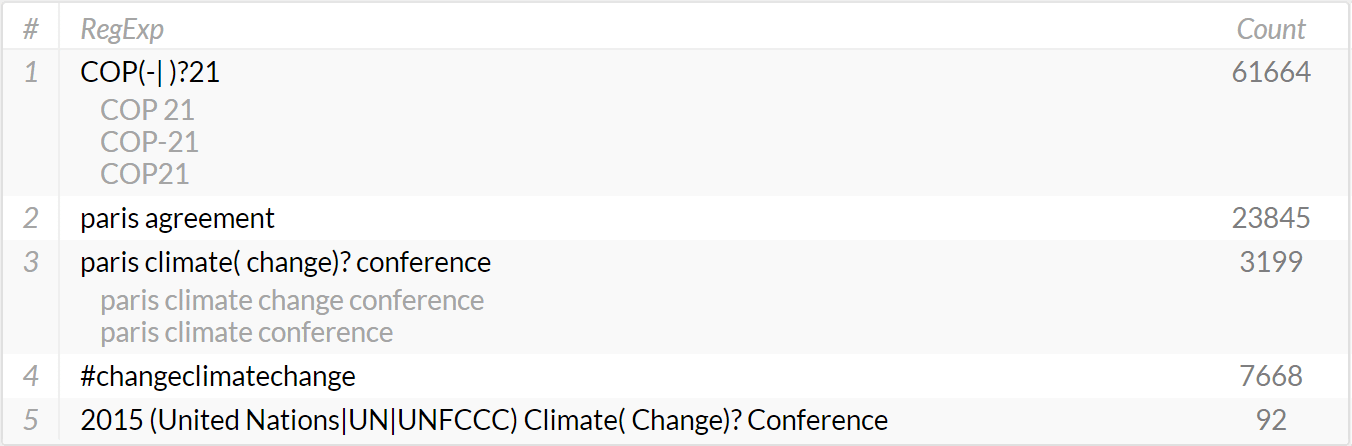
Instead of having to define one line each per RegExp or searched phrase, select ‘list of phrases’ to activate the Phrase Editor. This editor allows you to define and manage lists of terms. Each line can contain either a single word, a phrase, or a regular expression (RegExp).
Enter at least one word or phrase per line. Press ENTER to add a new line. By default, at least one line has to match to include a document in the set of search results. There is no need to use quotation marks to identify phrases such as big data. The column on the right shows the number of documents matching the query defined by this particular line. It considers the currently selected content source(s) and time interval. You can sort the lines alphabetically or by the number of matching documents.
Additional Options
Below the text input lines, you can specify the minimal number of RegExp lines that a document must match for inclusion in the search results. This can improve the precision of the query at the cost of lower results. It makes sense for terms that are ambiguous without additional context information (like Amazon the company vs. Amazon the river).
You can export both the regular expression list and the expanded term list as comma-separated values (CSV) or plain text files. To import existing term lists, just copy/paste text into the editor, which automatically creates the required number of lines.
On mouse-over, the editor provides an expand/shrink option to preview a list of all phrases matching the regular expression. The gear icon opens a tooltip to access the Topic Wizard. This visual editor for regular expressions helps you explore phrase variations. If the line is not in a valid RegExp format, it will show a brief help text and disable the wizard for this particular line.
Reserved and Special Characters
When searching for the reserved characters listed below in full-text fields (text, title), the system treats any of these special characters like a space without any inherent meaning. Therefore, it is not possible to search for them directly.
- List of reserved characters:
+ – = && || > < ! ( ) { } [ ] ^ ” ~ * ? . , : \ / - Example: When searching for “eco-innovation”, the system treats “-” as a word separator (similar to a white space). It will also match documents containing “eco innovation”, “eco&innovation”, “eco/innovation”, etc.
Supported Fields
In addition to the Phrase Editor, the following fields support Regular Expressions: text, title, text or title, text (same sentence) and URL. Note that only the Phrase Editor supports the full set of regular expressions in the form listed above. The search box and any other fields only support the general wildcard (‘*’) token and the ?-token, which in these cases stands for a single, unknown character. The only exception applies when searching for an ‘exact phrase’ or using quotation marks (“”), which then treats it as a phrase. If this input consists of multiple words, the system will strip any wildcards and not consider them in the search.
When using the global filter to search, you can manually enter text to search within text and titles with the above-mentioned limited set of regular expression possibilities. The same search limitations apply when creating “pills” in the Lite Version of the webLyzard dashboard.
We invite you to try out these features with our UN Dashboard or to contact us for other domains or tailored solutions.


